
Welcome to Teema Studio, an advanced desktop application for PEEC SImulations. This guide will help you familiarize yourself with the interface and make the most of the available tools to create and manage your simulation projects.
Installation & Setup
Docker Requirement
Before starting the application, it is crucial to have Docker installed on your system. The application relies on Docker containers to run the simulation backend efficiently.

CADmIA is a versatile tool for creating 3D models. Initially designed for the electrical/electronic field, it has evolved into a general-purpose modeler. Its modular architecture allows users to combine basic components to build highly complex structures.
Basic Models
Available primitives configurable via SideBar:
Tip: Adjust radial segments for higher precision or better performance.
Binary Operations & Cloning
Composition
Combine objects using boolean operations. Click to watch examples:
Cloning
Duplicate any object with all current properties to speed up modeling.
Snap-to-face
Snap objects to faces for precise alignment. Click to watch example:
Organization Tools
Essential tools for organizing your scene. Click to watch examples:
Patterning
Create multiple copies of objects in specific arrangements.
Materials
In CADmIA, you can create, manage, and assign custom materials to your objects. This allows for accurate physical simulations by defining specific electromagnetic properties.
Manage Materials
Access the Material Editor to create new materials or modify existing ones. You can define base properties like name and color for visualization.
Physical Properties
Define Permeability, Permittivity, and Conductivity. Each can be set as a constant, or with a Tangent Delta, or as a custom Frequency-Dependent profile.
Material Attributes
| Property | Description | Options |
|---|---|---|
| General | Basic identification and visualization. | Name, Color |
| Permeability (μ) | Magnetic property. | Constant, Tangent Delta, Custom (Freq. Dependent) |
| Permittivity (ε) | Electric property. | Constant, Tangent Delta, Custom (Freq. Dependent) |
| Conductivity (σ) | Electrical conduction. | Constant, Tangent Delta, Custom (Freq. Dependent) |
* Custom properties allow defining Real (Re) and Imaginary (Im) values for specific frequencies.
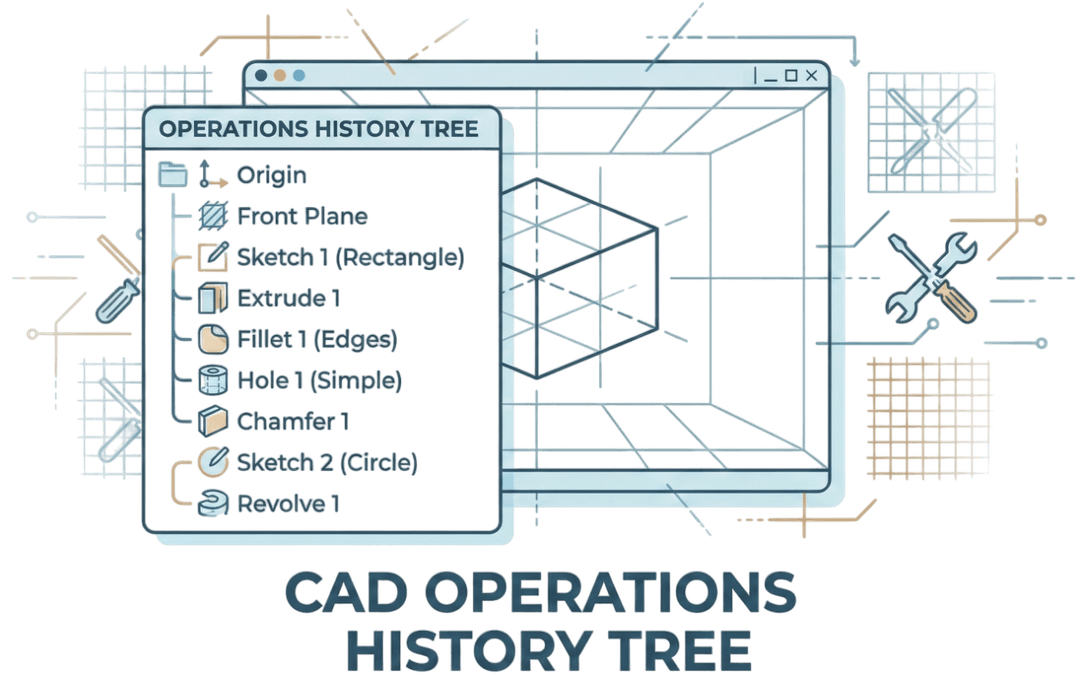
History Tree
Track every operation in your project. Undo/Redo actions or travel back in time to any previous state.
Import / Export
Export
- Save AsUpload project to server
- Save With Ris GeometryInclude rigorous geometry data
- Export Project (JSON)Full project data
- Export STLGeometry mesh only
- Export Ris GeometrySeries of cube objects
Import
- LoadDownload from server
- Import Ris GeometryFrom local file
A RIS geometry is defined by a series of bricks with specific coordinates.
Each element is defined as:
[Xmin, Xmax, Ymin, Ymax, Zmin, Zmax]This format cannot be used if the canvas contains complex objects like STLs or geometries resulting from boolean operations.Format Example: JSON Array of Bricks Sample - Import Project (JSON)Restore full project
- Import STLLoad 3D meshSample STL File Sample
ESymIA is a powerful FEM-based simulation tool for analyzing electrical and electronic characteristics of 3D models. The workflow is split into four key stages: Modeler, Physics (Terminations), Simulator, and Results.
Projects Management
The Projects dashboard is your command center in ESymIA. From here, you can create new simulations or open existing ones.
New Project
Start a fresh simulation from scratch. Define your settings and launch your simulation.
Open
Resume work on your saved projects. Access your recent files quickly.
Folder Organization
Organize your projects into logical folders to keep your workspace clean and efficient.
Pro Tip: Project Organization
Use descriptive names for your projects. ESymIA auto-saves your work.
Model Import
Import the 3D model you intend to simulate. You can load your geometry from two primary sources:
FileSystem
Load standard CAD files (JSON) directly from your local computer storage.
Database
Access models stored in the central project database or cloud repository.
Mesher
Discretize your model geometry for simulation. The efficient generation of the mesh is crucial for both accuracy and simulation speed.
Standard Models
For standard geometries, the Uniform Mesher is selected by default.
- Set Frequency: input the Max Frequency of your simulation.
- Get Quantum: Wait for the system to suggest an optimal Initial Quantum (cell size).
- Generate: Create the initial mesh.
- Iterate: If the mesh is too coarse or too fine, use the Refine or Coarsen tools to adjust the grid density.
RIS Models
Reconfigurable Intelligent Surfaces (RIS) offer two meshing strategies:
Option A: Uniform
Follows the same workflow as Standard Models (Max Freq → Quantum → Refine/Coarsen).
Option B: Non-Uniform
- Set Max Frequency.
- Set Lambda Factor (grid scaling).
- Generate Mesh.
- Adjust parameters and regenerate if needed.
Solver
Configure the physical environment and simulation parameters. This section controls excitations, boundaries, and the time-domain solver settings.
Simulation Type
Select Simulation Mode
Matrix (S, Z, Y)
Compute Scattering, Impedance, and Admittance matrices for multi-port networks.
Electric Fields
Analyze time-domain electric field distribution and propagation in 3D space.
Frequencies
Frequency Settings
Matrix (Z, S, Y)
Define a frequency range by specifying:
- Min Value
- Max Value
- Number of Samples
Or import from CSV:
SampleFrequencies
1000000
1930697.72...Electric Fields
Define Final Time and Time Step (in seconds). The frequency range is automatically generated:
You can then select specific frequencies to study.
Ports & Plane Waves
Excitations & Sources
Ports
- Type: 2D Port (Rect/Circ)
- Modes: TE / TM / TEM
- Impedance: Auto / User-defined
Lumped Elements
- RLC: Resistor, Inductor, Cap
- Voltage Src: Signal Generator
- Diode: Non-linear models
Plane Waves
- Polarization: Linear / Circ / Ellip
- Direction: K-Vector (Theta/Phi)
- Amplitude: E-field (V/m)
Tip: Positioning Ports & Lumped Elements
There are several ways to set the position of ports:
- Double click on the surface
- Drag to the desired position
- Via numeric input
For greater precision, it is suggested to set the position via numeric input.
Simulation Parameters
Solver Configuration
Solver Type
Rcc Delayed Coefficients
High accuracy computation
Quasi Static Coefficients
Fast approximation
Advanced GMRES Settings
- Convergence Threshold1e-4 (DEFAULT)
Stop criterion based on relative residual error.
- Inner Iterations1 (DEFAULT)
Maximum number of restart cycles.
- Outer Iterations100 (DEFAULT)
Krylov subspace dimension before restart.
Results & Analysis
Visualize your data with the Results viewer. Plot S-parameters, visualize 3D fields, and export data for external processing.
S-Parameters
View Return Loss (S11), Insertion Loss (S21), and Smith Charts. Toggle between Magnitude (dB) and Phase.
3D Fields
Visualize Electric (E) and Magnetic (H) fields on 2D planes or as 3D isosurfaces. Animate fields in time.
Far Field
Compute 3D Radiation Patterns, Gain, Directivity, and Efficiency for antenna designs.
Storage & Management
Efficiently manage your simulation data. ESymIA handles large field monitors and mesh data with a smart caching system.
Autosave & Recovery
ESymIA includes a robust auto-save feature that snapshots your project on every change.
Sharing Functionalities
Real-time collaboration is not supported. Sharing a project performs a "Clone & Associate" operation: the project is duplicated and linked to the recipient's account. They view it as an independent project and can modify it without affecting your original version.
Cloud Sync
Every project is automatically synchronized to the cloud.
- Maximum of 3 projects
- No folder organization
- Sharing features disabled